4.Playable混合AnimationClip和AnimatorController
4.1 知识点
思路和步骤
用 Playable API 混合 AnimationClip 和 AnimatorController,核心思路不变:创建一个混合器节点,把动画剪辑和动画控制器接进去,用权重控制混合比例。
核心步骤:
- 创建图并设置更新模式
- 创建动画输出,绑定到 Animator
- 创建混合器并连接到输出(需要 2 个输入端口)
- 创建动画剪辑和控制器节点
- 连接节点到混合器
- 播放图
- 在 Update 中动态设置混合权重
- 清理资源
代码实现
步骤1:创建图并设置更新模式
// 创建 Playable 图并设置更新模式为 GameTime
playableGraph = PlayableGraph.Create();
playableGraph.SetTimeUpdateMode(DirectorUpdateMode.GameTime);
先创建 PlayableGraph,并设置时间更新模式为游戏时间。
步骤2:创建动画输出
// 创建动画输出,连接到 Animator 组件
AnimationPlayableOutput animationPlayableOutput =
    AnimationPlayableOutput.Create(playableGraph, "Animation", GetComponent<Animator>());
创建动画输出节点并绑定 Animator,混合结果就会应用到角色上。
步骤3:创建混合器并连接到输出
// 创建混合器,支持 2 个输入(一个动画剪辑,一个动画控制器)
animationMixerPlayable = AnimationMixerPlayable.Create(playableGraph, 2);

// 将混合器设置为输出源
animationPlayableOutput.SetSourcePlayable(animationMixerPlayable);
创建混合器需要 2 个输入端口(分别对应动画剪辑与动画控制器),再把混合器设置为输出源。
步骤4:创建动画剪辑和控制器节点
// 创建动画剪辑的可播放项
AnimationClipPlayable clipPlayable = AnimationClipPlayable.Create(playableGraph, animationClip);

// 创建动画控制器的可播放项
AnimatorControllerPlayable controllerPlayable = AnimatorControllerPlayable.Create(playableGraph, animatorController);
把动画剪辑和动画控制器都包装成 Playable 节点。AnimatorControllerPlayable 负责驱动整个 AnimatorController(状态机与过渡都在其中)。
步骤5:连接节点到混合器
// 将动画剪辑和动画控制器连接到混合器的输入端口
// Connect 参数说明:
// 参数1:源 Playable(要连接的可播放项)
// 参数2:源输出端口(0 - AnimationClipPlayable 和 AnimatorControllerPlayable 都只有一个输出端口)
// 参数3:目标 Playable(animationMixerPlayable - 混合器)
// 参数4:目标输入端口(混合器的输入端口索引,0 用于动画剪辑,1 用于动画控制器)
playableGraph.Connect(clipPlayable, 0, animationMixerPlayable, 0);
playableGraph.Connect(controllerPlayable, 0, animationMixerPlayable, 1);
用 Connect() 连接:动画剪辑接到输入端口 0,动画控制器接到输入端口 1。
步骤6:播放图
// 播放该图
playableGraph.Play();
开始播放图,之后每帧 Unity 会自动更新并应用到 Animator。
步骤7:在 Update 中动态设置混合权重
void Update()
{
    // 限制权重值在 0-1 范围内
    weight = Mathf.Clamp01(weight);

    // 设置混合器输入权重
    // animationClip 的权重为 (1 - weight),animatorController 的权重为 weight
    // 如果权重加起来不为1,可能导致动画的播放速度异常(总和小于1会变慢,大于1则会变快)
    animationMixerPlayable.SetInputWeight(0, 1.0f - weight);
    animationMixerPlayable.SetInputWeight(1, weight);
}
在 Update() 中动态调整权重,实现平滑过渡。Mathf.Clamp01() 用于限制权重在 0-1 范围内。
注意:权重总和建议保持为 1。总和不为 1 时混合结果会整体缩小或放大,实际项目里一般会做归一化。
步骤8:清理资源
void OnDisable()
{
    // 销毁该图创建的所有可播放项和输出
    playableGraph.Destroy();
}
组件禁用时调用 Destroy() 释放资源(节点与输出),避免内存泄漏。建议放在 OnDisable(),组件禁用时就能及时释放。
效果展示
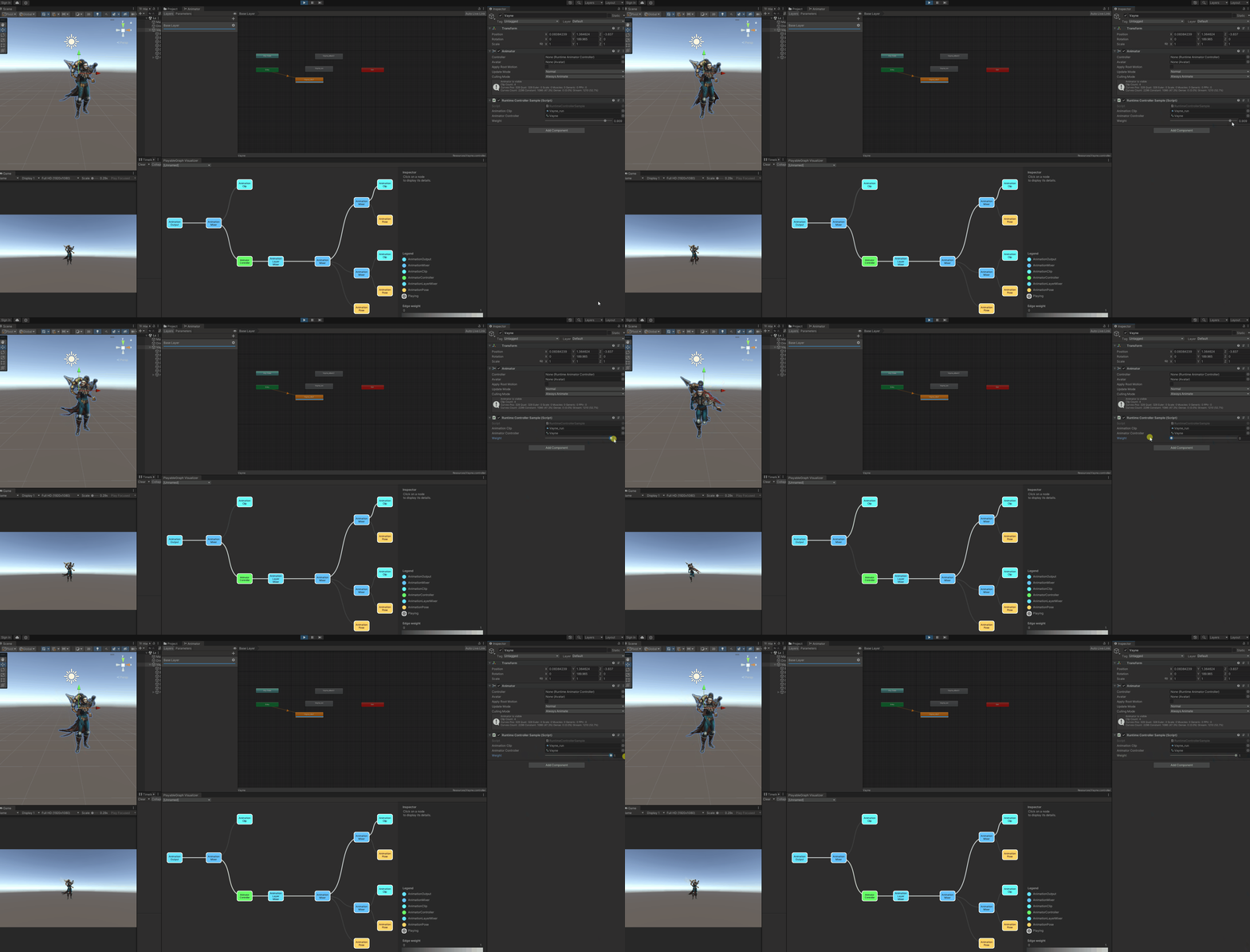
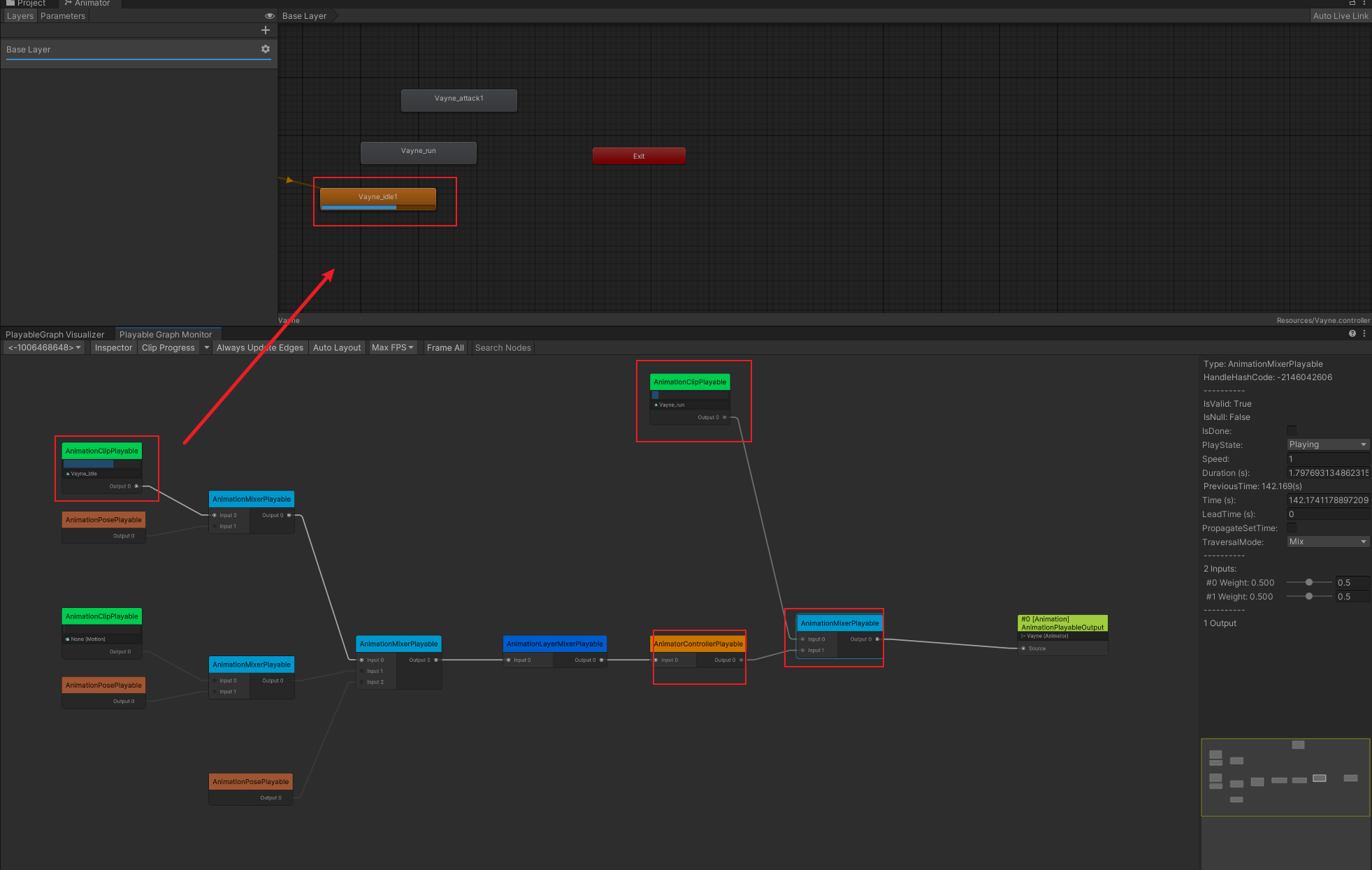
4.2 知识点代码
RuntimeControllerSample.cs
using UnityEngine;
using UnityEngine.Playables;
using UnityEngine.Animations;

/// <summary>
/// 混合 AnimationClip 和 AnimatorController 的示例组件
/// 该组件演示了如何使用 AnimationMixerPlayable 混合单个动画剪辑和运行时动画控制器
/// 通过调整 weight 参数可以控制动画剪辑和控制器的混合比例
/// </summary>
[RequireComponent(typeof(Animator))]
public class RuntimeControllerSample : MonoBehaviour
{
    /// <summary>
    /// 要播放的动画剪辑
    /// </summary>
    public AnimationClip animationClip;

    /// <summary>
    /// 要播放的运行时动画控制器
    /// </summary>
    public RuntimeAnimatorController animatorController;

    /// <summary>
    /// 混合权重值,范围 0-1
    /// 0 表示完全播放 animationClip,1 表示完全播放 animatorController
    /// </summary>
    [Range(0f, 1f)] public float weight;

    /// <summary>
    /// Playable 图,用于管理动画播放流程
    /// </summary>
    PlayableGraph playableGraph;

    /// <summary>
    /// 动画混合器,用于混合动画剪辑和动画控制器
    /// </summary>
    AnimationMixerPlayable animationMixerPlayable;

    /// <summary>
    /// 初始化并创建动画混合树
    /// </summary>
    void Start()
    {
        // 创建 Playable 图并设置更新模式为 GameTime
        playableGraph = PlayableGraph.Create();
        playableGraph.SetTimeUpdateMode(DirectorUpdateMode.GameTime);

        // 创建动画输出,连接到 Animator 组件
        AnimationPlayableOutput animationPlayableOutput =
            AnimationPlayableOutput.Create(playableGraph, "Animation", GetComponent<Animator>());

        // 创建混合器,支持 2 个输入(一个动画剪辑,一个动画控制器)
        animationMixerPlayable = AnimationMixerPlayable.Create(playableGraph, 2);

        // 将混合器设置为输出源
        animationPlayableOutput.SetSourcePlayable(animationMixerPlayable);

        // 创建动画剪辑的可播放项
        AnimationClipPlayable clipPlayable = AnimationClipPlayable.Create(playableGraph, animationClip);

        // 创建动画控制器的可播放项
        AnimatorControllerPlayable controllerPlayable = AnimatorControllerPlayable.Create(playableGraph, animatorController);

        // 将动画剪辑和动画控制器连接到混合器的输入端口
        // Connect 参数说明:
        // 参数1:源 Playable(要连接的可播放项)
        // 参数2:源输出端口(0 - AnimationClipPlayable 和 AnimatorControllerPlayable 都只有一个输出端口)
        // 参数3:目标 Playable(animationMixerPlayable - 混合器)
        // 参数4:目标输入端口(混合器的输入端口索引,0 用于动画剪辑,1 用于动画控制器)
        playableGraph.Connect(clipPlayable, 0, animationMixerPlayable, 0);
        playableGraph.Connect(controllerPlayable, 0, animationMixerPlayable, 1);

        // 播放该图
        playableGraph.Play();
    }

    /// <summary>
    /// 每帧更新混合权重
    /// 根据 weight 值动态调整动画剪辑和控制器的混合比例
    /// </summary>
    void Update()
    {
        // 限制权重值在 0-1 范围内
        weight = Mathf.Clamp01(weight);

        // 设置混合器输入权重
        // animationClip 的权重为 (1 - weight),animatorController 的权重为 weight
        // 权重总和建议保持为 1,不然混合结果的观感容易怪(整体被稀释/放大)
        animationMixerPlayable.SetInputWeight(0, 1.0f - weight);
        animationMixerPlayable.SetInputWeight(1, weight);
    }

    /// <summary>
    /// 组件禁用时清理资源,销毁 Playable 图及其所有可播放项和输出
    /// </summary>
    void OnDisable()
    {
        // 销毁该图创建的所有可播放项和输出
        playableGraph.Destroy();
    }
}
转载请注明来源,欢迎对文章中的引用来源进行考证,欢迎指出任何有错误或不够清晰的表达。可以在下面评论区评论,也可以邮件至 785293209@qq.com